
Sidebar 组件开发
第一章:导航栏简单展示
现在开始要进行 Sidebar 组件的开发,先来探讨下 Element Plus 的 el-menu 如何使用。
一、导航栏样式设置
在 src/style/variables.module.scss 中,需要设置菜单样式相关的变量,这些变量将用于后续组件的样式配置。
// src/style/variables.module.scss

// 省略的代码 ......

// 导航颜色
$menuText: #bfcbd9;
// 导航激活的颜色
$menuActiveText: #409eff;
// 菜单背景色
$menuBg: #304156;

:export {
  menuText: $menuText;
  menuActiveText: $menuActiveText;
  menuBg: $menuBg;
}:export 是 CSS 模块中用于在 SCSS 文件导出变量供 JavaScript 使用的规则。在 SCSS 文件里定义变量后,通过 :export 规则块,将变量映射成适合 JavaScript 访问的名称。在支持 CSS 模块的构建工具(如 Vite、Webpack)的 JavaScript 代码中,导入该 SCSS 文件,就能使用这些导出的变量。
需注意,导出变量名要遵循 JavaScript 命名规范,且依赖构建工具支持 CSS 模块功能。变量值在构建时确定,运行时无法直接修改。
二、el-menu 组件使用入门
1. 创建组件文件
在 src/layout/components/Sidebar 目录下创建 index.vue 文件。由于之前自动引入配置的路径要求,组件需放在 components 文件夹下,也可按需修改自动引入配置。
<!-- src/layout/components/Sidebar/index.vue -->
<template>
  <el-menu
    router
    :default-active="defaultActive"
    :background-color="variables.menuBg"
    :text-color="variables.menuText"
    :active-text-color="variables.menuActiveText"
  >
    <el-menu-item index="/dashboard">
      <template #title>Navigator</template>
    </el-menu-item>
  </el-menu>
</template>

<script lang="ts" setup>
import variables from "@/style/variables.module.scss";

const route = useRoute();
const defaultActive = computed(() => {
  return route.path;
});
</script>

<style scoped></style>2. 解决 TypeScript 类型导入问题
在 script 中直接导入 variables.module.scss 时,TypeScript 会报错,原因是它默认只识别 .ts、.js 等文件类型,缺少对 .scss 文件的类型定义。为解决该问题,我们在 src/style 下新建 variables.module.scss.d.ts 文件,为 variables.module.scss 提供类型定义。
// src/style/variables.module.scss.d.ts
interface IVariables {
  menuText: string;
  menuActiveText: string;
  menuBg: string;
}

export const variables: IVariables;
export default variables;通过创建该文件,TypeScript 能够识别 variables.module.scss 模块的类型,从而可以正常导入。
3. 页面引入 Sidebar 组件
在 layout/index.vue 中引入 Sidebar 组件。

<!-- src/layout/indev.vue -->
<template>
  <div class="app-wrapper">
    <div class="sidebar-container">
      <sidebar></sidebar>
    </div>
    <div class="main-container">
      <div class="header">
        <div class="navbar">导航条1</div>
        <div class="tags-view">导航条2</div>
      </div>
      <div class="app-main">
        <router-view></router-view>
      </div>
    </div>
  </div>
</template>完成上述所有步骤后,在项目的根目录下运行 npm run dev 命令即可启动开发服务器,打开浏览器访问相应的地址,就可以查看页面的实际效果,检查 Sidebar 组件是否按照预期显示和工作。
npm run dev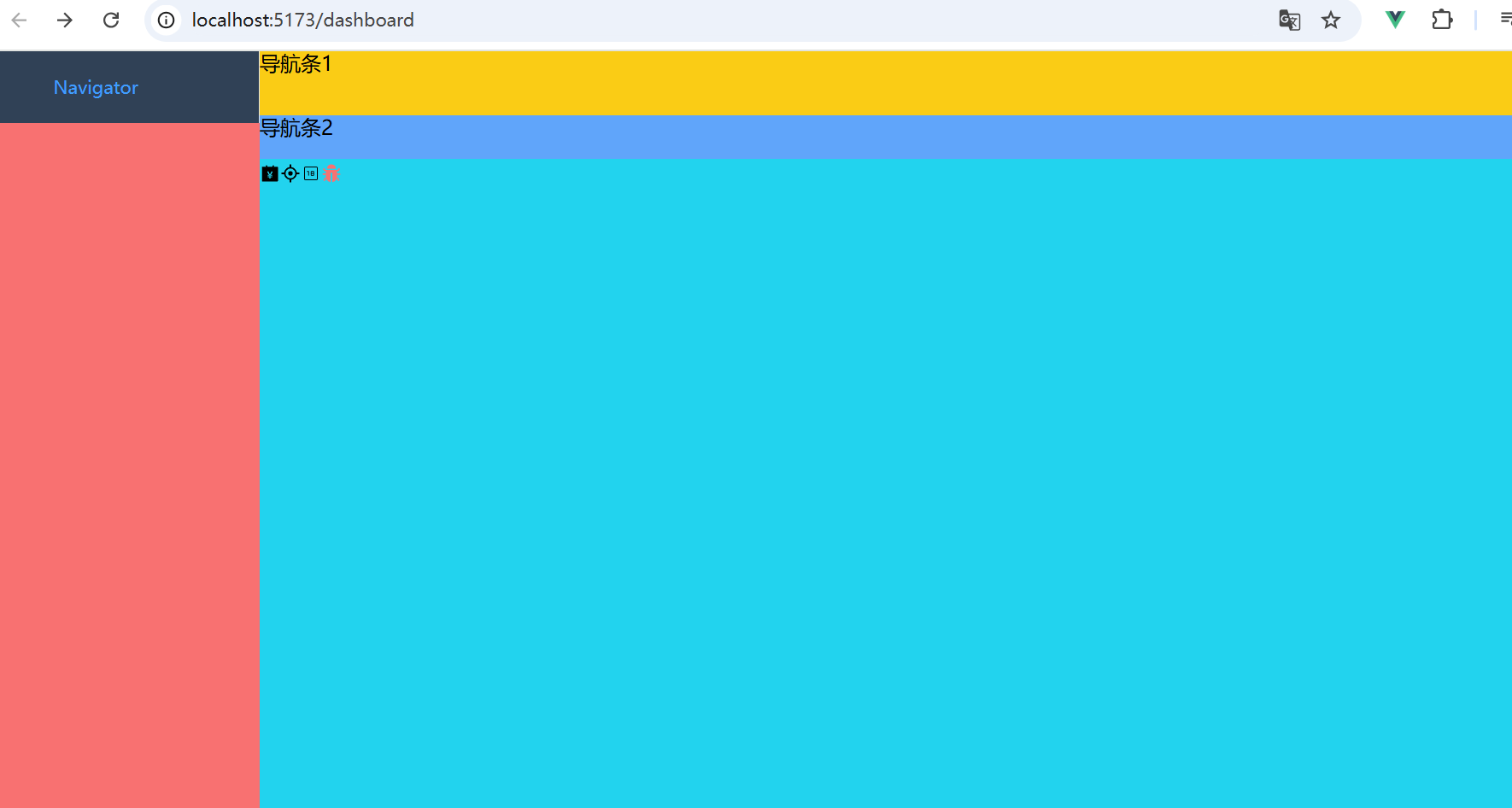
第二章:导航栏折叠功能
一、持久化 App store 中的数据
1)安装 Pinia Persistedstate
Pinia 是 Vue.js 的状态管理库,而 pinia-plugin-persistedstate 是一个针对 Pinia 的插件,它能让 Pinia 管理的状态实现持久化存储。在前端开发中,持久化状态意味着即使页面刷新或用户关闭浏览器重新打开,某些关键状态依然能保持不变,极大提升用户体验。比如侧边栏的展开或收起状态,用户设置后希望再次访问页面时依然保持之前的设置。使用以下命令进行安装:
pnpm add pinia-plugin-persistedstate2)在 main.ts 中使用
在 main.ts 中引入持久化插件 pinia-plugin-persistedstate,通过pinia.use(piniaPluginPersistedstate) 这行代码,将该插件应用到 Pinia 实例中。这样,后续定义的 Store 中的状态,只要按照插件规则配置,就能实现持久化存储。代码如下:
// main.ts
import { createPinia } from "pinia";
import piniaPluginPersistedstate from "pinia-plugin-persistedstate";

const app = createApp(App);
const pinia = createPinia();
pinia.use(piniaPluginPersistedstate); // 安装持久化插件3)配置 Pinia 和持久化插件
在 src 目录下创建 stores 文件夹,并在其中创建 app.ts 文件,代码如下:
// src/stores/app.ts
// 使用defineStore定义名为'app'的store
export const useAppStore = defineStore(
  "app",
  () => {

    // 定义响应式状态
    const state = reactive({
      sidebar: {
        opened: true
      }
      // ...
      // theme
    });
    // 计算属性,方便获取sidebar状态
    const sidebar = computed(() => state.sidebar);
    // 切换侧边栏展开状态的函数
    const toggleSidebar = () => {
      state.sidebar.opened = !state.sidebar.opened;
    };
    return { state, sidebar, toggleSidebar };
  },
  {
    // 持久化配置
    persist: {
      storage: window.localStorage, // 使用window.localStorage存储状态
      pick: ["state.sidebar"] // 只持久化state.sidebar这个属性
    }
  }
);注:state 必须导出,否则无法使用。
在 Store 的定义中,通过 persist 选项来配置持久化相关参数。storage 指定了存储方式,这里使用 window.localStorage,意味着状态会存储在浏览器的本地存储中。pick 数组指定了要持久化的具体状态属性,这里只选择了 state.sidebar,即只对侧边栏的展开状态进行持久化。如果有多个状态需要持久化,可以在 pick 数组中添加更多属性路径。
二、创建 Hamburger 组件
在 src/components 下创建 Hamburger 文件夹,其下创建 index.vue 文件,代码如下:
<!-- src/components/Hamburger/index.vue -->
<template>
  <div class="hamburger-container">
    <!-- svg-icon组件,用于显示菜单图标,根据collapse状态添加旋转类名 -->
    <svg-icon
      icon-name="ant-design:bars-outlined"
      custom-class="hamburger"
      :class="{ 'rotate-180': collapse }"
      @click="handleClick"
    ></svg-icon>
  </div>
</template>

<script lang="ts" setup>
// 定义组件props,接收collapse状态
const { collapse } = defineProps({
  collapse: {
    type: Boolean,
    default: false
  }
});
// 定义组件事件emit,用于触发toggleCollapse事件
const emit = defineEmits<{ (e: "toggleCollapse"): void }>();
// 点击处理函数,触发toggleCollapse事件
const handleClick = () => {
  emit("toggleCollapse");
};
</script>

<style scoped lang="scss">
.hamburger-container {
  @apply leading-[50px] float-left cursor-pointer px-10px hover:(bg-black/5);
}
.hamburger {
  @apply w-30px h-30px transition-transform duration-300;
}
</style>三、创建 Navbar 组件
在 src/layout/components 文件夹下创建 Navbar.vue,代码如下:
<!-- src/layout/components/Navbar.vue  -->
<template>
  <div class="navbar" flex>
    <!-- hamburger组件,绑定toggleCollapse事件和collapse状态 -->
    <hamburger
      @toggleCollapse="toggleSidebar"
      :collapse="sidebar.opened"
    ></hamburger>
  </div>
</template>

<script lang="ts" setup>
import { useAppStore } from "@/stores/app";
// 获取app store中的toggleSidebar和sidebar状态
// 在解构的时候要考虑值是不是对象,如果非对象解构出来就 丧失响应式了
const { toggleSidebar, sidebar } = useAppStore();
</script>

<style scoped lang="scss">
.navbar {
  @apply h-[var(--navbar-height)];
}
</style>四、修改 Sidebar 组件
修改 src/layout/components/Sidebar/index.vue,使用 pinia 存储的值,代码如下:
- 从 pinia 中获取到导航栏相关的配置信息 ==> 是否折叠
<!-- src/layout/components/Sidebar/index.vue -->
<template>
  <el-menu
    router
    class="sidebar-container-menu"
    :default-active="defaultActive"
    :background-color="variables.menuBg"
    :text-color="variables.menuText"
    :active-text-color="variables.menuActiveText"
    :collapse="sidebar.opened"
  >
    <el-menu-item index="/dashboard">
      <template #title>Navigator</template>
    </el-menu-item>
  </el-menu>
</template>

<script lang="ts" setup>
import { useAppStore } from "@/stores/app";
import variables from "@/style/variables.module.scss";

const { sidebar } = useAppStore();
const route = useRoute();
const defaultActive = computed(() => {
  return route.path;
});
</script>

<style scoped></style>五、修改 layout
修改后的 src/layout/index.vue 代码如下:
添加折叠功能后,导航栏宽度需要根据是否折叠来改变。
不折叠导航栏宽度:210px;折叠导航栏宽度:默认值。
<!-- src/layout/index.vue -->
<template>
  <div class="app-wrapper">
    <div class="sidebar-container">
      <sidebar></sidebar>
    </div>
    <div class="main-container">
      <div class="header">
        <!--  上边包含收缩的导航条 -->
        <navbar></navbar>
      </div>
      <div class="app-main">
        <router-view></router-view>
      </div>
    </div>
  </div>
</template>

<style lang="scss" scoped>
.app-wrapper {
  @apply flex w-full h-full;
  .sidebar-container {
    // 跨组件设置样式
    @apply bg-[var(--menu-bg)];
    :deep(.sidebar-container-menu:not(.el-menu--collapse)) {
      @apply w-[var(--sidebar-width)];
    }
  }
  .main-container {
    @apply flex flex-col flex-1;
  }
  .header {
    @apply h-84px;
    .navbar {
      @apply h-[var(--navbar-height)] bg-yellow;
    }
    .tags-view {
      @apply h-[var(--tagsview-height)] bg-blue;
    }
  }
  .app-main {
    @apply bg-cyan;
    min-height: calc(100vh - var(--tagsview-height) - var(--navbar-height));
  }
}
</style>至此,就实现了侧边栏的展开收起及展开收起状态的持久化,页面效果如下:

第三章:导航栏递归路由
一、菜单递归组件
1. path-browserify
path-browserify 是一款专门用于在浏览器环境中模拟 Node.js path 模块功能的 JavaScript 库。在 Node.js 中,path 模块为处理文件和目录路径提供了诸多实用方法,但浏览器本身并不具备这样的功能。path-browserify 填补了这一空白,使得开发者在前端项目中也能便捷地处理路径相关操作。
它支持路径拼接,通过 path.join() 方法可将多个路径片段组合成一个完整路径,自动适配不同操作系统的路径分隔符。path.resolve() 能把相对路径转换为绝对路径,path.normalize() 用于规范路径,去除冗余部分。还可利用 path.dirname() 和 path.basename() 分割路径,分别获取目录名和文件名。
通过 npm 安装后,在项目中以 ES Module 或 CommonJS 方式引入即可使用。在 Webpack 等构建工具中,需配置别名来确保正确引用。常用于前端构建工具配置、浏览器端涉及路径处理的场景以及跨平台开发,助力代码在不同环境下实现路径操作的一致性。
@types/path-browserify专门为path-browserify库提供 TypeScript 类型定义。在 TypeScript 项目里,它能让代码拥有更可靠的类型保障。借助@types/path-browserify,开发人员使用path-browserify时,像path.join这类方法,编译器会自动检查传入参数类型是否匹配,返回值类型是否正确。若类型有误,能及时报错,避免运行时错误。安装十分简单,通过npm install @types/path-browserify即可。安装后,它无缝对接 TypeScript 项目,为路径操作代码带来智能提示与类型检查,显著提升代码质量与开发效率。
通过 pnpm 安装插件
pnpm i path-browserify @types/path-browserify2. SidebarItemLink 组件
<!-- src/layout/components/Sidebar/SidebarItemLink.vue -->
<template>
  <component :is="componentType" v-bind="componentProps">
    <slot></slot>
  </component>
</template>

<script lang="ts" setup>
import { isExternal } from "@/utils/validate";

const { to } = defineProps<{
  to: string;
}>();

const isExt = computed(() => isExternal(to));
const componentType = computed(() => {
  return isExt.value ? "a" : "router-link";
});

const componentProps = computed(() => {
  if (isExt.value) {
    return {
      href: to,
      target: "_blank"
    };
  } else {
    return {
      to
    };
  }
});
</script>3. SidebarItem 组件
<!-- src/layout/components/Sidebar/SidebarItem.vue -->
<template>
  <!-- 我们需要将路由表中的路径进行添加 index -->
  <template v-if="!item.meta?.hidden">
    <sidebar-item-link
      v-if="filteredChildren.length <= 1 && !item.meta?.alwaysShow"
      :to="resolvePath(singleChildRoute.path)"
    >
      <el-menu-item :index="resolvePath(singleChildRoute.path)">
        <el-icon v-if="iconName">
          <svg-icon :icon-name="iconName" />
        </el-icon>
        <template #title>{{ singleChildRoute.meta.title }}</template>
      </el-menu-item>
    </sidebar-item-link>
    <el-sub-menu v-else :index="item.path">
      <template #title>
        <el-icon v-if="iconName"> <svg-icon :icon-name="iconName" /> </el-icon>
        <span>{{ item.meta?.title }}</span>
      </template>
      <sidebar-item
        v-for="child of filteredChildren"
        :key="child.path"
        :item="child"
        :base-path="resolvePath(child.path)"
      ></sidebar-item>
    </el-sub-menu>
  </template>
</template>

<script lang="ts" setup>
import type { RouteRecordRaw } from "vue-router";
import path from "path-browserify";

const { item, basePath } = defineProps<{
  item: RouteRecordRaw;
  basePath: string;
}>();
// 如果只有一个儿子,说明我们直接渲染这里的一个儿子即可
// 如果菜单对应的children有多个, 使用el-submenu去渲染
const filteredChildren = computed(() =>
  (item.children || []).filter((child) => !child.meta?.hidden)
);
// 要渲染的路由  system => children[]
const singleChildRoute = computed(
  () =>
    filteredChildren.value.length === 1
      ? filteredChildren.value[0]
      : { ...item, path: "" } // 此处我们将自己的 path 置为 "" 防止重复拼接
);
// 要渲染的图标
const iconName = computed(() => singleChildRoute.value.meta?.icon);
// 解析父路径 + 子路径  (resolve 可以解析绝对路径
//   /system  /sytem/memu -> /sytem/memu)
//   /  dashboard => /dashboard
const resolvePath = (childPath: string) => path.join(basePath, childPath);
</script>二、组件引用
在 src/layout/components/Sidebar/index.vue 中引用菜单递归组件,代码如下:
<!-- src/layout/components/Sidebar/index.vue -->
<template>
  <div>
    <el-menu
      class="sidebar-container-menu"
      router
      :default-active="defaultActive"
      :background-color="varaibles.menuBg"
      :text-color="varaibles.menuText"
      :active-text-color="varaibles.menuActiveText"
      :collapse="sidebar.opened"
    >
      <sidebar-item
        v-for="route in routes"
        :key="route.path"
        :item="route"
        :base-path="route.path"
      />
      <!-- 增加父路径,用于el-menu-item渲染的时候拼接 -->
    </el-menu>
  </div>
  <!-- :collapse="true" -->
</template>

<script lang="ts" setup>
import varaibles from "@/style/variables.module.scss";
import { useAppStore } from "@/stores/app";
import { routes } from "@/router";

const route = useRoute();
const { sidebar } = useAppStore();
const defaultActive = computed(() => {
  return route.path;
});
</script>

<style scoped></style>三、页面及路由配置
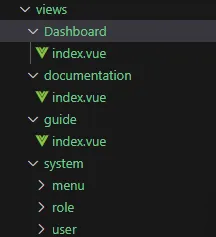
在 views 文件夹下新建页面,如:
在 src/router 下新建类型文件 typings.d.ts,如下:
// src/router/typings.d.ts
import "vue-router";
// 给模块添加额外类型, ts中的接口合并
declare module "vue-router" {
  interface RouteMeta {
    icon?: string;
    title?: string;
    hidden?: boolean;
    alwaysShow?: boolean;
    breadcrumb?: boolean;
    affix?: boolean;
    noCache?: boolean;
  }
}在 src/router/index.ts 中进行页面路由配置,代码如下:
// src/router/index.ts
import {
  createRouter,
  createWebHistory,
  type RouteRecordRaw
} from "vue-router";
import Layout from "@/layout/index.vue";

export const constantRoutes: RouteRecordRaw[] = [
  {
    path: "/",
    component: Layout,
    redirect: "/dashboard",
    children: [
      {
        path: "dashboard",
        name: "dashboard",
        component: () => import("@/views/dashboard/index.vue"),
        meta: {
          icon: "ant-design:bank-outlined",
          title: "dashboard",
          affix: true, // 固定在tagsViews中
          noCache: true // 不需要缓存
        }
      }
    ]
  }
];

export const asyncRoutes: RouteRecordRaw[] = [
  {
    path: "/documentation",
    component: Layout,
    redirect: "/documentation/index",
    children: [
      {
        path: "index",
        name: "documentation",
        component: () => import("@/views/documentation/index.vue"),
        meta: {
          icon: "ant-design:database-filled",
          title: "documentation"
        }
      }
    ]
  },
  {
    path: "/guide",
    component: Layout,
    redirect: "/guide/index",
    children: [
      {
        path: "index",
        name: "guide",
        component: () => import("@/views/guide/index.vue"),
        meta: {
          icon: "ant-design:car-twotone",
          title: "guide"
        }
      }
    ]
  },
  {
    path: "/system",
    component: Layout,
    redirect: "/system/menu",
    meta: {
      icon: "ant-design:unlock-filled",
      title: "system",
      alwaysShow: true
      // breadcrumb: false
      // 作为父文件夹一直显示
    },
    children: [
      {
        path: "menu",
        name: "menu",
        component: () => import("@/views/system/menu/index.vue"),
        meta: {
          icon: "ant-design:unlock-filled",
          title: "menu"
        }
      },
      {
        path: "role",
        name: "role",
        component: () => import("@/views/system/role/index.vue"),
        meta: {
          icon: "ant-design:unlock-filled",
          title: "role"
        }
      },
      {
        path: "user",
        name: "user",
        component: () => import("@/views/system/user/index.vue"),
        meta: {
          icon: "ant-design:unlock-filled",
          title: "user"
        }
      }
    ]
  },
  {
    path: "/external-link",
    component: Layout,
    children: [
      {
        path: "http://www.baidu.com",
        redirect: "/",
        meta: {
          icon: "ant-design:link-outlined",
          title: "link Baidu"
        }
      }
    ]
  }
];

// 需要根据用户赋予的权限来动态添加异步路由
export const routes = [...constantRoutes, ...asyncRoutes];
export default createRouter({
  routes, // 路由表
  history: createWebHistory() //  路由模式
});四、菜单样式问题解决
以上步骤后,页面显示如下,发现菜单标题下方有蓝色线条。

修改 src/style/index.scss
// src/style/index.scss
@import "./variables.module.scss";

:root {
  --sidebar-width: #{$sideBarWidth};
  --navbar-height: #{$navBarHeight};
  --tagsview-height: #{$tagsViewHeight};
  --menu-bg: #{$menuBg};
}
a {
  @apply decoration-none active:(decoration-none) hover:(decoration-none);
}修改后,页面显示如下:

五、菜单组件缓存
在 dashboard.index 中加个输入框,输入值后,切换到其他菜单,再切换回来,发现输入的值已经置空,想要缓存已经输入的值,需要做组件的缓存。
1. AppMain 组件
在 layout/components 下新建 AppMain.vue
<!-- layout/components/AppMain.vue -->
<template>
  <router-view v-slot="{ Component }">
    <transition name="fade">
      <keep-alive>
        <component :is="Component" :key="$route.path"></component>
      </keep-alive>
    </transition>
  </router-view>
</template>

<script lang="ts" setup></script>

<style lang="scss">
.fade-enter-active,
.fade-leave-active {
  @apply transition-all duration-500 pos-absolute;
}
.fade-enter-from {
  @apply opacity-0 translate-x-[50px];
}
.fade-leave-to {
  @apply opacity-0 translate-x-[-50px];
}
</style>2. 修改 layout/index.vue
修改 layout/index.vue,引入 AppMain.vue,代码如下:
<!-- src/layout/index.vue -->
<template>
  <div class="app-wrapper">
    <div class="sidebar-container">
      <sidebar></sidebar>
    </div>
    <div class="main-container">
      <div class="header">
        <!--  上边包含收缩的导航条 -->
        <navbar></navbar>
      </div>
      <div class="app-main">
        <app-main></app-main>
      </div>
    </div>
  </div>
</template>

<style lang="scss" scoped>
.app-wrapper {
  @apply flex w-full h-full;
  .sidebar-container {
    // 跨组件设置样式
    @apply bg-[var(--menu-bg)];
    :deep(.sidebar-container-menu:not(.el-menu--collapse)) {
      @apply w-[var(--sidebar-width)];
    }
  }
  .main-container {
    @apply flex flex-col flex-1;
  }
  .header {
    @apply h-84px;
    .navbar {
      @apply h-[var(--navbar-height)] bg-yellow;
    }
    .tags-view {
      @apply h-[var(--tagsview-height)] bg-blue;
    }
  }
  .app-main {
    @apply bg-cyan;
    min-height: calc(100vh - var(--tagsview-height) - var(--navbar-height));
  }
}
</style>这样,切换菜单后,就能对组件进行缓存。