
音乐播放页
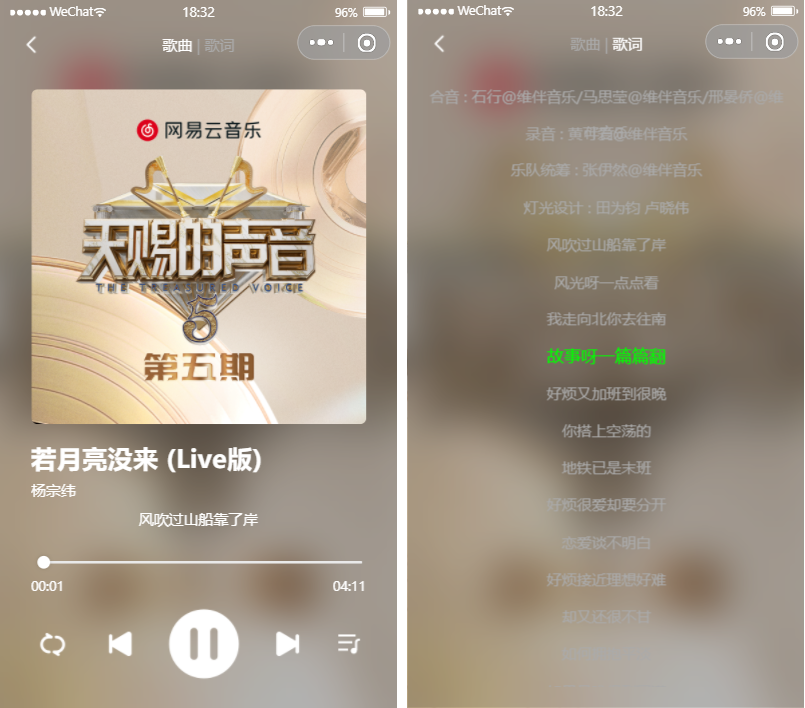
第一章:跳转到播放页
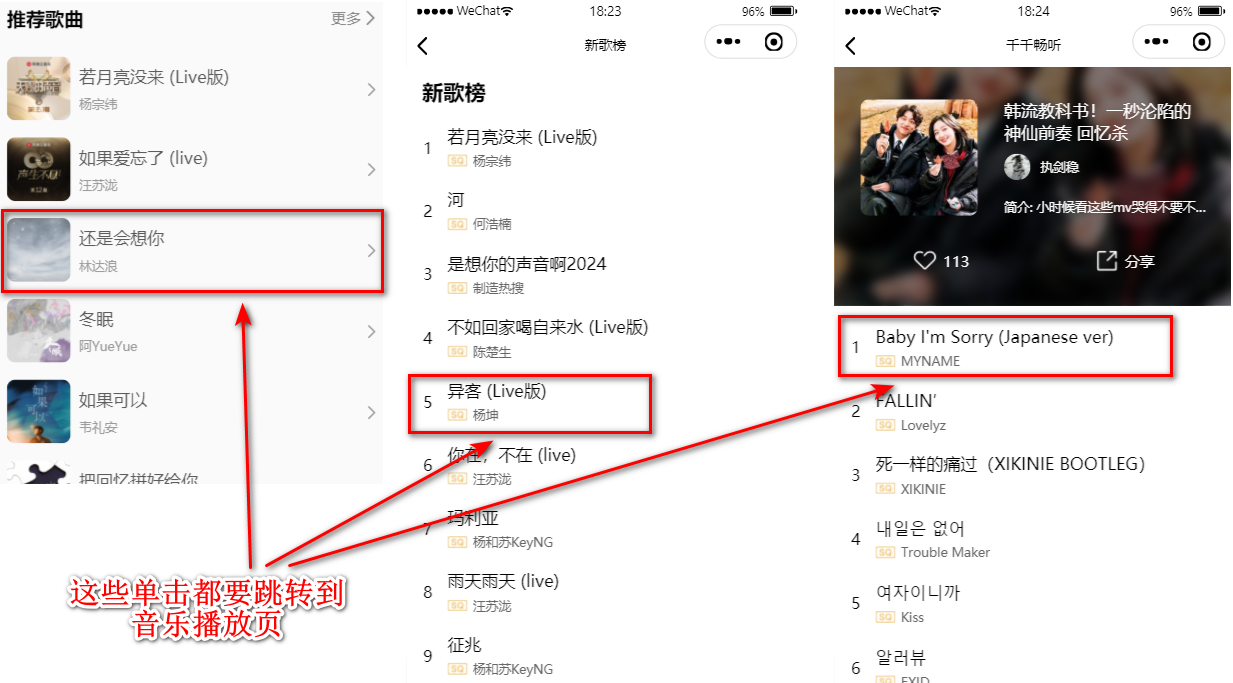
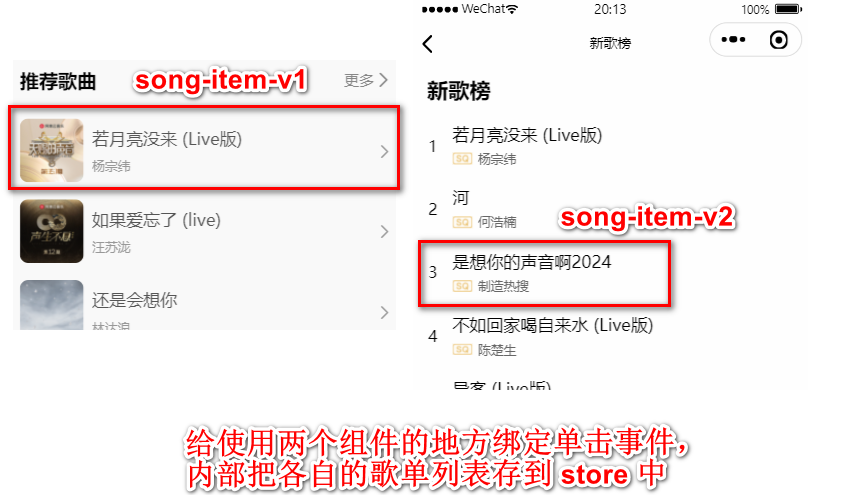
这些页面中的每个 item,本质就是两个组件。分别是 \components\song-item-v1 和 \components\song-item-v2。只需在这两个组件中绑定单击事件即可。
\components\song-item-v1\song-item-v1.js 与 \components\song-item-v2\song-item-v2.js
onSongItemTap() {
  const id = this.properties.itemData.id
  wx.navigateTo({
    url: `/pages/music-player/music-player?id=${id}`,
  })
}第二章:页面获取数据
一、封装 API
\services\modules\player.js
export function getSongDetail(ids) {
  return ddfRequest.get("/song/detail", {
    ids
  })
}

export function getSongLyric(id) {
  return ddfRequest.get("/lyric", {
    id
  })
}二、获取数据
\pages\music-player\music-player.js
onLoad(options) {
  const id = options.id

  // 根据 id 获取歌曲的详情
  getSongDetail(id).then(res => {
    this.setData({
      currentSong: res.songs[0],
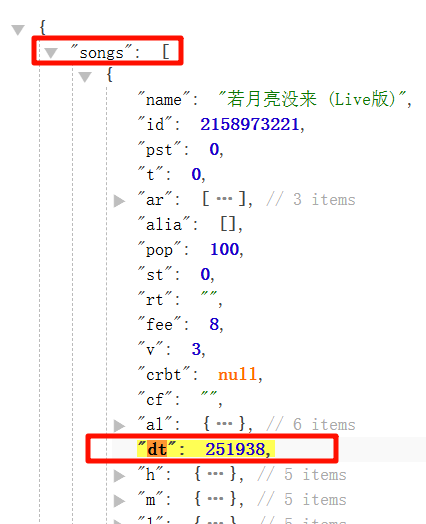
      durationTime: res.songs[0].dt // 音频总时长,单位毫秒
    })
  })

  // 根据 id 获取歌词的信息
  getSongLyric(id).then(res => {
    const lrcString = res.lrc.lyric
    const lyricInfos = parseLyric(lrcString)
    this.setData({ lyricInfos })
  })
}
三、整理歌词
数据分析
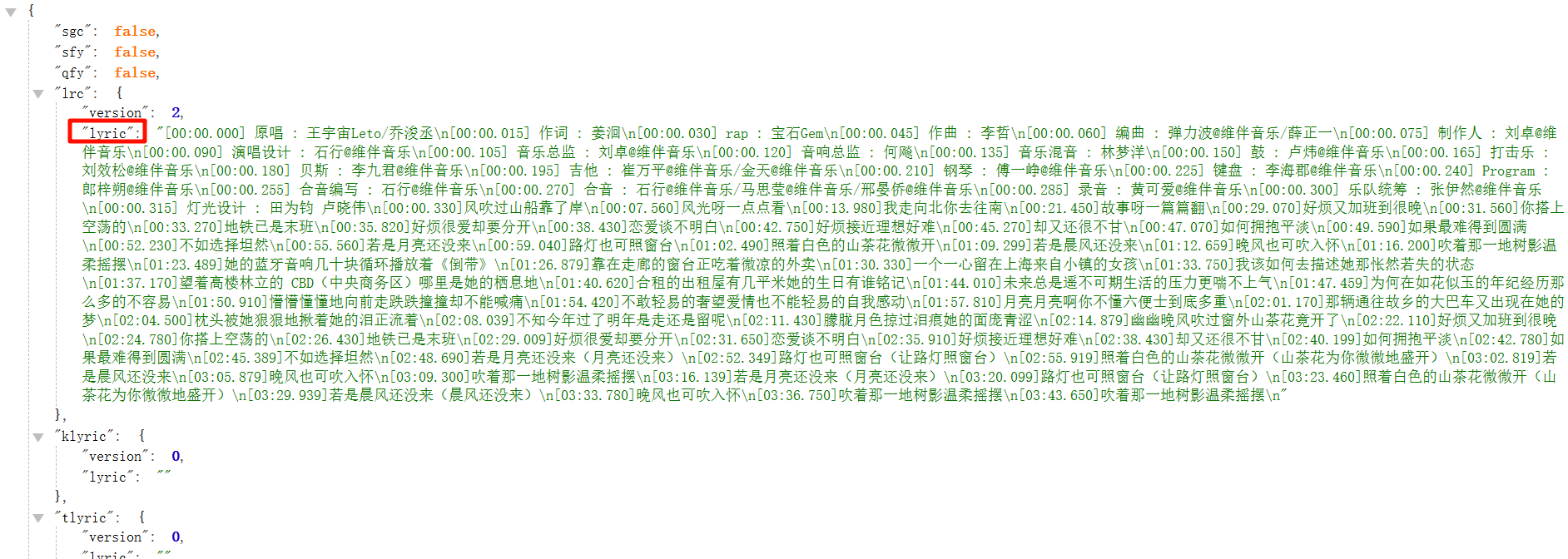
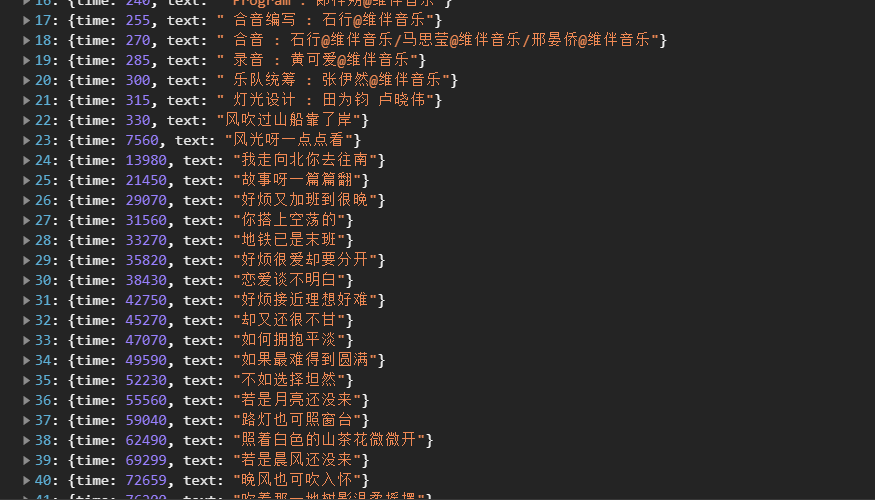
需要把返回的歌词整理成图片的格式。
{
    "lyric": "[00:00.000] 原唱 : 王宇宙Leto/乔浚丞\n[00:00.015] 作词 : 姜洄\n[00:00.030] rap : 宝石Gem\n[00:00.045] 作曲 : 李哲\n[00:00.060] 编曲 : 弹力波@维伴音乐/薛正一\n[00:00.075] 制作人 : 刘卓@维伴音乐\n[00:00.090] 演唱设计 : 石行@维伴音乐\n[00:00.105] 音乐总监 : 刘卓@维伴音乐\n[00:00.120] 音响总监 : 何飚\n[00:00.135] 音乐混音 : 林梦洋\n[00:00.150] 鼓 : 卢炜@维伴音乐\n[00:00.165] 打击乐 : 刘效松@维伴音乐\n[00:00.180] 贝斯 : 李九君@维伴音乐\n[00:00.195] 吉他 : 崔万平@维伴音乐/金天@维伴音乐\n[00:00.210] 钢琴 : 傅一峥@维伴音乐\n[00:00.225] 键盘 : 李海郡@维伴音乐\n[00:00.240] Program : 郎梓朔@维伴音乐\n[00:00.255] 合音编写 : 石行@维伴音乐\n[00:00.270] 合音 : 石行@维伴音乐/马思莹@维伴音乐/邢晏侨@维伴音乐\n[00:00.285] 录音 : 黄可爱@维伴音乐\n[00:00.300] 乐队统筹 : 张伊然@维伴音乐\n[00:00.315] 灯光设计 : 田为钧 卢晓伟\n[00:00.330]风吹过山船靠了岸\n[00:07.560]风光呀一点点看\n[00:13.980]我走向北你去往南\n[00:21.450]故事呀一篇篇翻\n[00:29.070]好烦又加班到很晚\n[00:31.560]你搭上空荡的\n[00:33.270]地铁已是末班\n[00:35.820]好烦很爱却要分开\n[00:38.430]恋爱谈不明白\n[00:42.750]好烦接近理想好难\n[00:45.270]却又还很不甘\n[00:47.070]如何拥抱平淡\n[00:49.590]如果最难得到圆满\n[00:52.230]不如选择坦然\n[00:55.560]若是月亮还没来\n[00:59.040]路灯也可照窗台\n[01:02.490]照着白色的山茶花微微开\n[01:09.299]若是晨风还没来\n[01:12.659]晚风也可吹入怀\n[01:16.200]吹着那一地树影温柔摇摆\n[01:23.489]她的蓝牙音响几十块循环播放着《倒带》\n[01:26.879]靠在走廊的窗台正吃着微凉的外卖\n[01:30.330]一个一心留在上海来自小镇的女孩\n[01:33.750]我该如何去描述她那怅然若失的状态\n[01:37.170]望着高楼林立的 CBD(中央商务区)哪里是她的栖息地\n[01:40.620]合租的出租屋有几平米她的生日有谁铭记\n[01:44.010]未来总是遥不可期生活的压力更喘不上气\n[01:47.459]为何在如花似玉的年纪经历那么多的不容易\n[01:50.910]懵懵懂懂地向前走跌跌撞撞却不能喊痛\n[01:54.420]不敢轻易的奢望爱情也不能轻易的自我感动\n[01:57.810]月亮月亮啊你不懂六便士到底多重\n[02:01.170]那辆通往故乡的大巴车又出现在她的梦\n[02:04.500]枕头被她狠狠地揪着她的泪正流着\n[02:08.039]不知今年过了明年是走还是留呢\n[02:11.430]朦胧月色掠过泪痕她的面庞青涩\n[02:14.879]幽幽晚风吹过窗外山茶花竟开了\n[02:22.110]好烦又加班到很晚\n[02:24.780]你搭上空荡的\n[02:26.430]地铁已是末班\n[02:29.009]好烦很爱却要分开\n[02:31.650]恋爱谈不明白\n[02:35.910]好烦接近理想好难\n[02:38.430]却又还很不甘\n[02:40.199]如何拥抱平淡\n[02:42.780]如果最难得到圆满\n[02:45.389]不如选择坦然\n[02:48.690]若是月亮还没来(月亮还没来)\n[02:52.349]路灯也可照窗台(让路灯照窗台)\n[02:55.919]照着白色的山茶花微微开(山茶花为你微微地盛开)\n[03:02.819]若是晨风还没来\n[03:05.879]晚风也可吹入怀\n[03:09.300]吹着那一地树影温柔摇摆\n[03:16.139]若是月亮还没来(月亮还没来)\n[03:20.099]路灯也可照窗台(让路灯照窗台)\n[03:23.460]照着白色的山茶花微微开(山茶花为你微微地盛开)\n[03:29.939]若是晨风还没来(晨风还没来)\n[03:33.780]晚风也可吹入怀\n[03:36.750]吹着那一地树影温柔摇摆\n[03:43.650]吹着那一地树影温柔摇摆\n"
}
代码实现
\utils\parse-lyric.js
const timeReg = /\[(\d{2}):(\d{2})\.(\d{2,3})\]/

export function parseLyric(lrcString) {
  const lyricInfos = []

  const lyricLines = lrcString.split("\n")
  for (const lineString of lyricLines) {
    const results = timeReg.exec(lineString)
    if (!results) continue
    const minute = results[1] * 60 * 1000
    const second = results[2] * 1000
    const mSecond = results[3].length === 2 ? results[3] * 10: results[3] * 1
    const time = minute + second + mSecond
    const text = lineString.replace(timeReg, "")
    lyricInfos.push({ time, text })
  }
  return lyricInfos
}第三章:歌曲页面布局
一、背景图 + 毛玻璃

\pages\music-player\music-player.wxml
<!-- 背景展示 -->
<image class="bg-image" src="{{currentSong.al.picUrl}}" mode="aspectFill"></image>
<view class="bg-cover"></view>\pages\music-player\music-player.wxss
.bg-image, .bg-cover {
  position: fixed;
  left: 0;
  top: 0;
  width: 100%;
  height: 100%;
  z-index: -1;
}

.bg-cover {
  background-color: rgba(0,0,0,.3);
  backdrop-filter: blur(20px);
}二、自定义状态栏和导航栏

1. 配置自定义导航栏
\pages\music-player\music-player.json
{
  "navigationStyle": "custom", // 取消掉默认的导航栏
  "navigationBarTextStyle": "white", // 让状态栏字体变为白色
}2. 封装 NavBar 组件
1)留出状态栏空间
在 NavBar 添加 view 组件,代表状态栏。
\components\nav-bar\nav-bar.wxml
<view class="nav-bar">
  <view class="status" style="height: {{statusHeight}}px;"></view>
</view>但是状态栏高度在不同设备上不同,不能固定一个值,怎么办?微信小程序有获取状态栏高度的 API。
\app.js
// app.js
App({
  globalData: {
    statusHeight: 20,
  },
  onLaunch() {
    wx.getSystemInfo({
      success: (res) => {
        this.globalData.statusHeight = res.statusBarHeight
      },
    })
  }
})这样在任何组件中,只要拿到 app 实例,就可以拿到上面的数据了。
\components\nav-bar\nav-bar.js
const app = getApp()

lifetimes: {
  attached() {
    this.setData({ statusHeight: app.globalData.statusHeight })
  }
},2)自定义导航栏

大致布局思路:.nav 是 flex、.center 是 flex: 1;、.left 与 .right 都是固定宽度 120px。.left、.right、.center 又是 flex 布局,设置 justify-content: center; 和 align-items: center;,目的是让里面的元素垂直水平居中。
\components\nav-bar
<view class="nav">
  <view class="left">
    <view class="slot">
      <slot name="left"></slot>
    </view>
    <view class="default">
      <image class="icon" src="/assets/images/icons/arrow-left.png"></image>
    </view>
  </view>
  <view class="center">
    <view class="slot">
      <slot name="center"></slot>
    </view>
    <view class="default">
      {{title}}
    </view>
  </view>
  <view class="right"></view>
</view>怎么能让 .left 和 .center 在使用者传递插槽时展示传递的内容,否则展示默认的。使用到 CSS 奇淫技巧 ❗❗❗
.default {
  display: none;
}

.slot:empty + .default {
  display: flex;
}3. 使用 NavBar 组件
1)注册组件
\pages\music-player\music-player.json
{
  "usingComponents": {
    "nav-bar": "/components/nav-bar/nav-bar"
  }
}2)使用组件
\pages\music-player\music-player.wxml
<!-- 自定义导航栏 -->
<nav-bar>
  <view class="tabs" slot="center">
    <block wx:for="{{pageTitles}}" wx:key="*this">
      <view
        class="item {{currentPage === index ? 'active': ''}}"
        bindtap="onNavTabItemTap" data-index="{{index}}"
      >
        {{item}}
      </view>
      <view class="divider" wx:if="{{index !== pageTitles.length - 1}}">|</view>
    </block>
  </view>
</nav-bar>\pages\music-player\music-player.js
data: {
    pageTitles: ["歌曲", "歌词"],
    currentPage: 0,
},

onNavTabItemTap(event) {
  const index = event.currentTarget.dataset.index
  this.setData({ currentPage: index })
},\pages\music-player\music-player.wxss
/* 导航中center */
.tabs {
  display: flex;
  font-size: 28rpx;
  color: #aaa;
}

.tabs .divider {
  margin: 0 8rpx;
}

.tabs .active {
  color: #fff;
}三、歌曲 + 歌词页面 & 导航栏切换
之间切换解决方案
使用 swiper 组件来做歌曲 & 歌词界面。swiper 组件有两个属性需要用到:
current 属性:用来控制当前 swiper-item 是哪一个。
之前设置过一个 state 是 currentPage,来控制导航栏【歌曲 & 歌词】目前选中的是哪个,来添加激活样式。可以把这个变量绑给current 属性来实现切换。
bindchange 属性:需要一个回调函数,当 swiper-item 改变的时候,会回调这个函数。
当用户滑动页面时,触发 currentPage 改变。
js// \pages\music-player\music-player.js onSwiperChange(event) { this.setData({ currentPage: event.detail.current }) },
布局问题
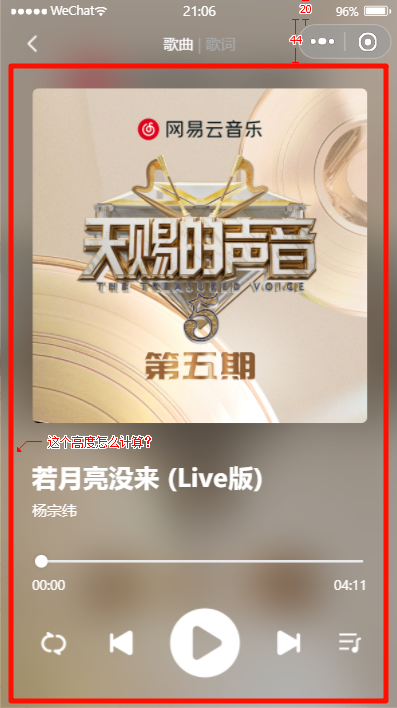
歌曲与歌词页面高度 = 通过微信小程序提供的 API 获取到屏幕高度 - API 获取到的状态栏高度 - 导航栏固定的 44 px
\app.js
App({
  globalData: {
    contentHeight: 500
  },
  onLaunch() {
    wx.getSystemInfo({
      success: (res) => {
        this.globalData.contentHeight = res.screenHeight - res.statusBarHeight - 44
      },
    })
  }
})四、歌曲页面内容布局
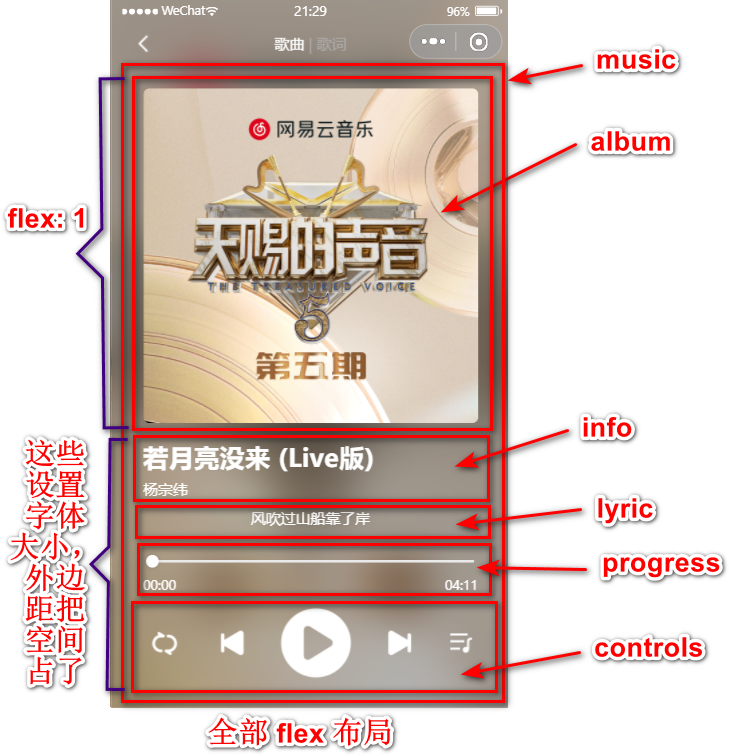
第四章:歌曲页面基本功能实现
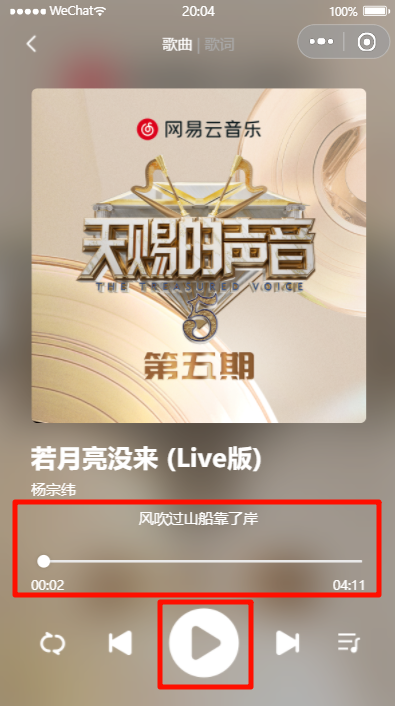
这里只实现核心功能,其他功能见第六章。
一、创建播放器 & 播放歌曲
// 创建播放器
const audioContext = wx.createInnerAudioContext()

onLoad(options) {
  // 播放当前的歌曲
  audioContext.src = `https://music.163.com/song/media/outer/url?id=${id}.mp3`
  audioContext.autoplay = true
}二、监听歌曲播放的时间和展示
当 audioContext 播放的时候,会不断回调 onTimeUpdate 函数,只需在这里面改变当前播放时间与滑块位置的 data 即可。
// 监听音频播放进度更新事件
audioContext.onTimeUpdate(() => {
  const sliderValue = this.data.currentTime / this.data.durationTime * 100
  this.setData({
    currentTime: audioContext.currentTime * 1000,
    sliderValue
  })
})当前播放的进度(时间)有了,总时间在 /song/detail 有返回,且之前已经存到 data 中了。
onTimeUpdate 要做节流,否则有时点击滑块频繁了,会出现闪烁的情况。因为在 onTimeUpdate 里 audioContext.currentTime 有时获取到的值还是点击滑块以前的值,反应不过来。
三、进度条
使用微信小程序自带的 slider 组件。
| 属性 | 类型 | 默认值 | 必填 | 说明 | 最低版本 |
|---|---|---|---|---|---|
| value | number | 0 | 否 | 当前取值 | 1.0.0 |
| block-size | number | 28 | 否 | 滑块的大小,取值范围为 12 - 28 | 1.9.0 |
| bindchange | eventhandle | 否 | 完成一次拖动后触发的事件,event.detail = | 1.0.0 | |
| bindchanging | eventhandle | 否 | 拖动过程中触发的事件,event.detail = | 1.7.0 |
给滑块绑定 bindchange 属性,当完成一次拖动就触发 onSliderChange 事件。用于改变当前播放时间与滑块位置。
onSliderChange(event) {
  // 1.获取点击滑块位置对应的value
  const value = event.detail.value

  // 2.计算出要播放的位置时间
  const currentTime = value / 100 * this.data.durationTime

  // 3.设置播放器, 播放计算出的时间
  audioContext.seek(currentTime / 1000)
  this.setData({ currentTime, sliderValue: value })
},
// 触发 onSliderChange 回调后,发现 onTimeUpdate 不监听了,需要以下操作来恢复监听
audioContext.onWaiting(() => {
  audioContext.pause()
})
audioContext.onCanplay(() => {
  audioContext.play()
})给滑块绑定 bindchanging 属性,当在拖动过程中就触发 onSliderChanging 事件。用于改变当前播放时间。
onSliderChanging(event) {
  // 1.获取滑动到的位置的value
  const value = event.detail.value

  // 2.根据当前的值, 计算出对应的时间
  const currentTime = value / 100 * this.data.durationTime
  this.setData({ currentTime })

  // 3.当前正在滑动
  this.data.isSliderChanging = true
}滑动滑块的时候,onTimeUpdate 不要改变当前播放时间与滑块位置,因为如果滑动滑块的时候,改变当前播放时间与滑块位置会与 onTimeUpdate 冲突,滑动滑块的时候,会出现跳跃问题。
onSliderChange 的时候,把 isSliderChanging 改为 true。onTimeUpdate 增加判断,只有 isSliderChanging 值为 false 的时候才改变。
四、播放按钮的控制
给播放按钮绑定单击事件。
onPlayOrPauseTap() {
  if (!audioContext.paused) {
    audioContext.pause()
    this.setData({ isPlaying: false })
  } else {
    audioContext.play()
    this.setData({ isPlaying: true })
  }
},根据 isPlaying 的值,来设置图片的名字。
<image
  class="btn play"
  src="/assets/images/player/play_{{ isPlaying ? 'pause': 'resume' }}.png"
  bindtap="onPlayOrPauseTap"
/>五、歌词的精准匹配和记录展示
先根据当前播放的时间与歌词显示的时间进行比较,找到大于当前播放时间的歌词 index,减去 1,就是目前要显示的歌词了。但是这样最后一句歌词永远匹配不上,怎么办?直接让 index 值默认为最后一个元素的索引值。
audioContext.onTimeUpdate(() => {
  // ......
  // 匹配正确的歌词
  if (!this.data.lyricInfos.length) return
  let index = this.data.lyricInfos.length - 1
  for (let i = 0; i < this.data.lyricInfos.length; i++) {
    const info = this.data.lyricInfos[i]
    if (info.time > audioContext.currentTime * 1000) {
      index = i - 1
      break
    }
  }
  // 一些优化,避免页面不停的渲染
  if (index === this.data.currentLyricIndex) return

  // 获取歌词的索引index和文本text
  // 改变歌词滚动页面的位置
  const currentLyricText = this.data.lyricInfos[index].text
  this.setData({
    currentLyricText,
    currentLyricIndex: index
  })
})第五章:歌词界面
一、展示歌词
1. 基本展示
从 lyricInfos 中遍历歌词信息,展示到界面上。
<swiper-item>
  <scroll-view class="lyric-list" scroll-y>
    <block wx:for="{{lyricInfos}}" wx:key="time">
      <view class="item">{{item.text}}</view>
    </block>
  </scroll-view>
<swiper-item>使用 CSS 美化。
/* 歌词的样式 */
.lyric-list {
  color: #aaa;
  font-size: 28rpx;
  text-align: center;
  height: 100%;
  box-sizing: border-box;
  padding: 40rpx;
}

.lyric-list::-webkit-scrollbar {
  display: none;
}

.lyric-list .item {
  height: 35px;
  line-height: 35px;
}

.lyric-list .item.active {
  color: #0f0;
  font-size: 32rpx;
}但是想让第一句歌词与最后一句歌词显示的时候大致在屏幕中心。
<swiper-item>
  <scroll-view
    class="lyric-list"
    scroll-y
  >
    <block wx:for="{{lyricInfos}}" wx:key="time">
      <view
        class="item"
        style="padding-top: {{index === 0 ? (contentHeight/2-66) : 0}}px; padding-bottom: {{ index === lyricInfos.length - 1 ? (contentHeight/2+66) : 0 }}px;"
      >
        {{item.text}}
      </view>
    </block>
  </scroll-view>
</swiper-item>2. 歌词的滚动与高亮
但是想让第一句歌词与最后一句歌词显示的时候大致在屏幕中心。
<swiper-item>
  <scroll-view
    class="lyric-list"
    scroll-y
    scroll-top="{{lyricScrollTop}}"
    scroll-with-animation
  >
    <block wx:for="{{lyricInfos}}" wx:key="time">
      <view
        class="item {{currentLyricIndex === index ? 'active': ''}}"
        style="padding-top: {{index === 0 ? (contentHeight/2-66) : 0}}px; padding-bottom: {{ index === lyricInfos.length - 1 ? (contentHeight/2+66) : 0 }}px;"
      >
        {{item.text}}
      </view>
    </block>
  </scroll-view>
</swiper-item>lyricScrollTop 值这么计算?在匹配到当前要展示的歌词 inde,更新 data 中的数据时,顺便也更新下 lyricScrollTop: 35 * index。
第六章:歌曲页面其他功能
一、歌曲页拿到歌单列表
1. 创建 playerStore
\store\playerStore.js
import { HYEventStore } from 'hy-event-store'

const playerStore = new HYEventStore({
  state: {
    playSongList: [],
    playSongIndex: 0
  }
})

export default playerStore2. 添加事件
<!-- \pages\detail-song\detail-song.wxml -->
<song-item-v1 itemData="{{item}}" data-index="{{index}}" bindtap="onSongItemTap"/>

<!-- \pages\detail-song\detail-song.wxml -->
<song-item-v2
  itemData="{{item}}"
  index="{{index+1}}"
  data-index="{{index}}"
  bindtap="onSongItemTap"
/><!-- \pages\main-music\main-music.js -->
onSongItemTap(event) {
const index = event.currentTarget.dataset.index
playerStore.setState("playSongList", this.data.recommendSongs)
playerStore.setState("playSongIndex", index)
},
<!-- \pages\detail-song\detail-song.js -->
onSongItemTap() {
const index = event.currentTarget.dataset.index
playerStore.setState("playSongList", this.data.songInfo.tracks)
playerStore.setState("playSongIndex", index)
},二、播放上 / 下一首
给按钮绑定单击事件。
onPrevBtnTap() {
  this.changeNewSong(false)
},
onNextBtnTap() {
  this.changeNewSong()
},

changeNewSong(isNext = true) {
  // 1.获取之前的数据
  const length = this.data.playSongList.length
  let index = this.data.playSongIndex

  // 2.根据之前的数据计算最新的索引
  index = isNext ? index + 1: index - 1
  if (index === length) index = 0
  if (index === -1) index = length - 1

  // 3.根据索引获取当前歌曲的信息
  const newSong = this.data.playSongList[index]
  // 将数据回到初始状态
  this.setData({ currentSong: {}, sliderValue: 0, currentTime: 0, durationTime: 0 })
  // 开始播放新的歌曲
  this.setupPlaySong(newSong.id)

  // 4.保存最新的索引值
  playerStore.setState("playSongIndex", index)
},当自动播放完的时候,自动播放下一首。
audioContext.onEnded(() => {
  // 切换下一首歌曲
  this.changeNewSong()
})三、播放模式
0 顺序播放;1 单曲循环;2 随机播放。
1)切换模式
onModeBtnTap() {
  // 1.计算新的模式
  let modeIndex = this.data.playModeIndex
  modeIndex = modeIndex + 1
  if (modeIndex === 3) modeIndex = 0

  // 设置是否是单曲循环
  if (modeIndex === 1) {
    audioContext.loop = true
  } else {
    audioContext.loop = false
  }

  // 2.保存当前的模式
  this.setData({ playModeIndex: modeIndex, playModeName: modeNames[modeIndex] })
},2)点击下一首的时候,根据模式执行不同操作
changeNewSong(isNext = true) {
  // 1.获取之前的数据
  const length = this.data.playSongList.length
  let index = this.data.playSongIndex

  // 2.根据之前的数据计算最新的索引
  switch (this.data.playModeIndex) {
    case 1:
    case 0: // 顺序播放
      index = isNext ? index + 1: index - 1
      if (index === length) index = 0
      if (index === -1) index = length - 1
      break
    // case 1: // 单曲循环
    //   break
    case 2: // 随机播放
      index = Math.floor(Math.random() * length)
      break
  }

  // 3.根据索引获取当前歌曲的信息
  const newSong = this.data.playSongList[index]
  // console.log(newSong.id);
  // 将数据回到初始状态
  this.setData({ currentSong: {}, sliderValue: 0, currentTime: 0, durationTime: 0 })
  // 开始播放新的歌曲
  this.setupPlaySong(newSong.id)

  // 4.保存最新的索引值
  playerStore.setState("playSongIndex", index)
},3)歌曲自然播放完后,执行操作
audioContext.onEnded(() => {
  // 如果是单曲循环, 不需要切换下一首歌
  if (audioContext.loop) return

  // 切换下一首歌曲
  this.changeNewSong()
})第七章:代码重构
歌曲播放页的数据与功能在其他页面也会用到,应该共享。
一、抽取播放歌曲逻辑
1. 哪些 data 需要共享
data: {
  // ======================== 下面的都需要移动到store ========================
  id: 0,
  currentSong: {}, // 歌曲的详情
  lyricInfos: [], // 歌曲的歌词
  currentLyricText: "", // 当前唱的歌词
  currentLyricIndex: -1, // 当前唱的歌词的索引

  currentTime: 0,
  durationTime: 0,

  isFirstPlay: true,
},2. 播放歌曲方法移到 store
切换音乐的方法应该放到 store 的 action 中。
playMusicWithSongIdAction(ctx, id) {
  // 0.原来的数据重置
  ctx.currentSong = {}
  ctx.durationTime = 0
  ctx.currentTime = 0
  ctx.currentLyricIndex = 0
  ctx.currentLyricText = ""
  ctx.lyricInfos = []

  // 1.保存id
  ctx.id = id

  // 2.请求歌曲相关的数据
  // 2.1.根据id获取歌曲的详情
  getSongDetail(id).then(res => {
    ctx.currentSong = res.songs[0]
    ctx.durationTime = res.songs[0].dt
  })

  // 2.2.根据id获取歌词的信息
  getSongLyric(id).then(res => {
    const lrcString = res.lrc.lyric
    const lyricInfos = parseLyric(lrcString)
    ctx.lyricInfos = lyricInfos
  })

  // 3.播放当前的歌曲
  audioContext.stop()
  audioContext.src = `https://music.163.com/song/media/outer/url?id=${id}.mp3`
  audioContext.autoplay = true

  // 4.监听播放的进度
  if (ctx.isFirstPlay) {
    ctx.isFirstPlay = false

    audioContext.onTimeUpdate(() => {
      // 1.获取当前播放的时间
      ctx.currentTime = audioContext.currentTime * 1000

      // 2.匹配正确的歌词
      if (!ctx.lyricInfos.length) return
      let index = ctx.lyricInfos.length - 1
      for (let i = 0; i < ctx.lyricInfos.length; i++) {
        const info = ctx.lyricInfos[i]
        if (info.time > audioContext.currentTime * 1000) {
          index = i - 1
          break
        }
      }
      if (index === ctx.currentLyricIndex) return

      // 3.获取歌词的索引index和文本text
      // 4.改变歌词滚动页面的位置
      const currentLyricText = ctx.lyricInfos[index].text
      ctx.currentLyricText = currentLyricText
      ctx.currentLyricIndex = index
    })
    audioContext.onWaiting(() => {
      audioContext.pause()
    })
    audioContext.onCanplay(() => {
      audioContext.play()
    })
    audioContext.onEnded(() => {
      // 如果是单曲循环, 不需要切换下一首歌
      if (audioContext.loop) return

      // 切换下一首歌曲
      // TODO this.dispatch("playNewMusicAction")
    })
  }
},3. 播放页监听Store中的数据
\pages\music-player\music-player.js
data: {
    stateKeys: ["id", "currentSong", "durationTime", "lyricInfos", "currentLyricText", "currentLyricIndex"]
}

onLoad(options) {
  // 0.获取设备信息
  this.setData({
    statusHeight: app.globalData.statusHeight,
    contentHeight: app.globalData.contentHeight
  })

  // 1.获取传入的id
  const id = options.id

  // 2.根据id播放歌曲
  if (id) {
    playerStore.dispatch("playMusicWithSongIdAction", id)
  }

  // 3.获取store共享数据
  playerStore.onStates(["playSongList", "playSongIndex"], this.getPlaySongInfosHandler)
  playerStore.onStates(this.data.stateKeys, this.getPlayerInfosHandler)
},

getPlayerInfosHandler({
  id, currentSong, durationTime,
  lyricInfos, currentLyricText, currentLyricIndex
}) {
  if (id !== undefined) {
    this.setData({ id })
  }
  if (currentSong) {
    this.setData({ currentSong })
  }
  if (durationTime !== undefined) {
    this.setData({ durationTime })
  }
  if (lyricInfos) {
    this.setData({ lyricInfos })
  }
  if (currentLyricText) {
    this.setData({ currentLyricText })
  }
  if (currentLyricIndex !== undefined) {
    this.setData({ currentLyricIndex })
  }
},完成后,歌曲播放页和歌词页的信息展示成功,但是歌词页的歌词不滚动了,怎么办?
getPlayerInfosHandler({
  id, currentSong, durationTime,
  lyricInfos, currentLyricText, currentLyricIndex
}) {
  // ......
  if (currentLyricIndex !== undefined) {
    // 修改lyricScrollTop
    this.setData({ currentLyricIndex, lyricScrollTop: currentLyricIndex * 35 })
  }
},滑块没有随着歌曲播放而改变,怎么办?
updateProgress: throttle(function(currentTime) {
  if (this.data.isSliderChanging) return
  // 1.记录当前的时间 2.修改sliderValue
  const sliderValue = currentTime / this.data.durationTime * 100
  this.setData({ currentTime, sliderValue })
}, 800, { leading: false, trailing: false }),

getPlayerInfosHandler({
  id, currentSong, durationTime,
  lyricInfos, currentLyricText, currentLyricIndex
}) {
  // ......
  if (currentTime !== undefined) {
    // 根据当前时间改变进度
    this.updateProgress(currentTime)
  }
  // ......
},4. 滑块的交互和播放
滑块的事件不用移动到 store 中,只需在 \store\playerStore.js 中暴露播放器实例,因为在滑块的事件需要改变播放器时间。
export const audioContext = wx.createInnerAudioContext()5. 暂停/播放按钮的点击
1)\store\playerStore.js 中添加 state。
isPlaying: false,2)\store\playerStore.js 中的切换歌曲 playMusicWithSongIdAction 方法中添加代码。当事件触发时,一上来就把 isPlaying 设置为 true。
3)添加控制歌曲播放的 action
changeMusicStatusAction(ctx) {
  if (!audioContext.paused) {
    audioContext.pause()
    ctx.isPlaying = false
  } else {
    audioContext.play()
    ctx.isPlaying = true
  }
},4)修改 \pages\music-player\music-player.js 中给播放/暂停按钮绑定的事件为派发 action。
onPlayOrPauseTap() {
  playerStore.dispatch("changeMusicStatusAction")
},5)\pages\music-player\music-player.js 需要 isPlaying 来控制播放/暂停按钮的图标显示。
getPlayerInfosHandler({
    id, currentSong, durationTime, currentTime,
    lyricInfos, currentLyricText, currentLyricIndex,
    isPlaying
}) {
  // ......
  if (isPlaying !== undefined) {
      this.setData({ isPlaying })
  }
},6. 播放模式的逻辑抽取
1)\store\playerStore.js
state: {
  playModeIndex: 0, // 0:顺序播放 1:单曲循环 2:随机播放
}

changePlayModeAction(ctx) {
  // 1.计算新的模式
  let modeIndex = ctx.playModeIndex
  modeIndex = modeIndex + 1
  if (modeIndex === 3) modeIndex = 0

  // 设置是否是单曲循环
  if (modeIndex === 1) {
    audioContext.loop = true
  } else {
    audioContext.loop = false
  }

  // 2.保存当前的模式
  ctx.playModeIndex = modeIndex
},2)修改 \pages\music-player\music-player.js 中的切换模式按钮绑定的事件为派发 action。
onModeBtnTap() {
  playerStore.dispatch("changePlayModeAction")
},3)\pages\music-player\music-player.js 需要 playModeIndex 来控制切换模式按钮的图标显示。
getPlayerInfosHandler({
    id, currentSong, durationTime, currentTime,
    lyricInfos, currentLyricText, currentLyricIndex,
    isPlaying, playModeIndex
}) {
  // ......
  if (playModeIndex !== undefined) {
    this.setData({ playModeName: modeNames[playModeIndex] })
  }
},7. 播放新歌曲的逻辑抽取封装
1)\store\playerStore.js
playNewMusicAction(ctx, isNext = true) {
  // 1.获取之前的数据
  const length = ctx.playSongList.length
  let index = ctx.playSongIndex

  // 2.根据之前的数据计算最新的索引
  switch (ctx.playModeIndex) {
    case 1:
    case 0: // 顺序播放
      index = isNext ? index + 1: index - 1
      if (index === length) index = 0
      if (index === -1) index = length - 1
      break
    case 2: // 随机播放
      index = Math.floor(Math.random() * length)
      break
  }

  // 3.根据索引获取当前歌曲的信息
  const newSong = ctx.playSongList[index]

  // 开始播放新的歌曲
  this.dispatch("playMusicWithSongIdAction", newSong.id)

  // 4.保存最新的索引值
  ctx.playSongIndex = index
}2)\pages\music-player\music-player.js
onPrevBtnTap() {
  playerStore.dispatch("playNewMusicAction", false)
},
onNextBtnTap() {
  playerStore.dispatch("playNewMusicAction")
},